Browser privacy is a consistency review
A website sees more than an IP address. Browser timezone, language, platform, viewport, WebRTC behavior, DNS route, and storage settings can all add context to the session.
The goal is not to erase every signal. The goal is to understand whether the browser profile makes sense beside the IP and network route you intend to use.
Example ping123 result to compare
Use browser fields to explain or challenge the IP result.
The screenshot below is a fixed reference image. It is included so the guide has a concrete result layout, but the decision should always come from the live check in your own browser session.
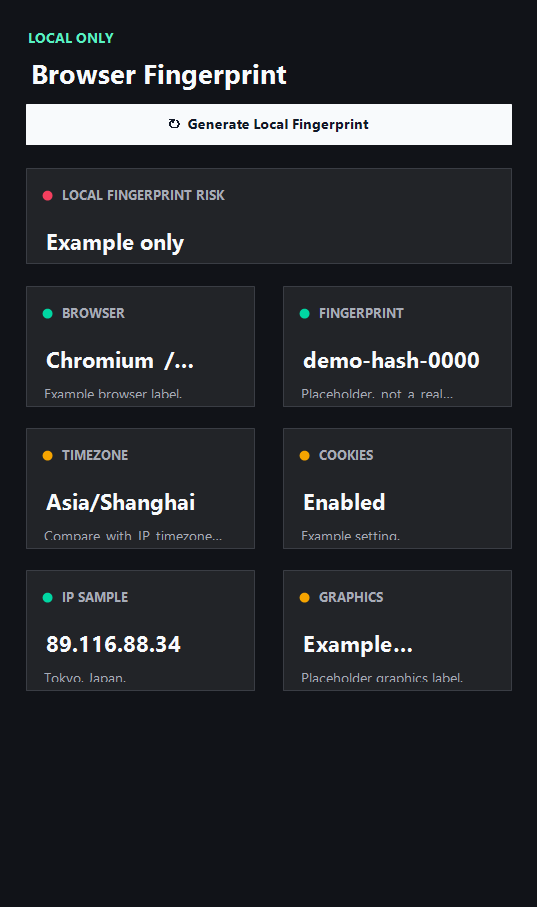
Treat the visible fields as evidence. A mismatch is a reason to investigate, not a final judgment about the person using the connection.
Normal vs warning signals
Use the table as a reading checklist. The goal is consistency across several visible signals, not perfection in one label.
| Signal | Usually acceptable | Needs a closer look |
|---|---|---|
| Timezone and language | Fit the IP country or the account context. | Point to a different country without a reason. |
| WebRTC and DNS | No route conflicts after manual checks. | Expose original network or another resolver country. |
| Fingerprint context | Stable enough for the workflow being tested. | Changes suddenly between repeated account sessions. |
Browser review before sensitive work
A repeatable order makes the result easier to trust and easier to debug later. It also helps teams compare sessions without relying on memory.
- Refresh the public IP profile.
- Check timezone, language, and platform fields.
- Run WebRTC and DNS manually when needed.
- Change one browser setting at a time.
- Retest in the same order after restarting the browser.
Limits and next checks
ping123 is an informational diagnostic tool. It helps explain the current browser session, but it does not promise anonymity, identity verification, fraud status, account approval, or platform compliance.
- ping123 does not build a unique tracking fingerprint for you.
- Browser privacy depends on extensions, OS settings, and platform behavior.
- More spoofing can sometimes create more inconsistency.
Related links
Related checks on ping123
Use these internal pages to continue the same privacy review with live tools and supporting guides.
FAQ
Is this result a guarantee that the session is safe?
No. It is a diagnostic check of visible network and browser signals. Account history, platform rules, payment details, behavior, and device trust can still matter.
Why does ping123 use a fixed sample screenshot in the guide?
The screenshot explains the fields without exposing a current visitor IP. Your live result should be checked in the browser session you actually plan to use.
What should I do when one signal looks wrong?
Change one setting at a time, rerun the same ping123 check, and compare the new result with the previous one so the cause is easier to isolate.
Do ads or partner links change the test?
No. Monetization does not alter the IP result, DNS result, WebRTC result, risk labels, screenshots, or editorial recommendations.
When should I rerun this check?
Rerun it after changing VPN server, proxy, DNS, browser profile, network, mobile hotspot, or before an account-sensitive login.