Public IP check
What is my IP?
Use ping123 to see the public IP address that websites can observe from this browser session. The first check shows the server-visible IP, ISP, ASN, country, city, timezone, IP version, and basic VPN or proxy risk clues.
Example ping123 result screenshot
The screenshot below uses the designated sample IP 89.116.88.34, not a current visitor IP. Use it as a visual reference for the fields explained on this page.
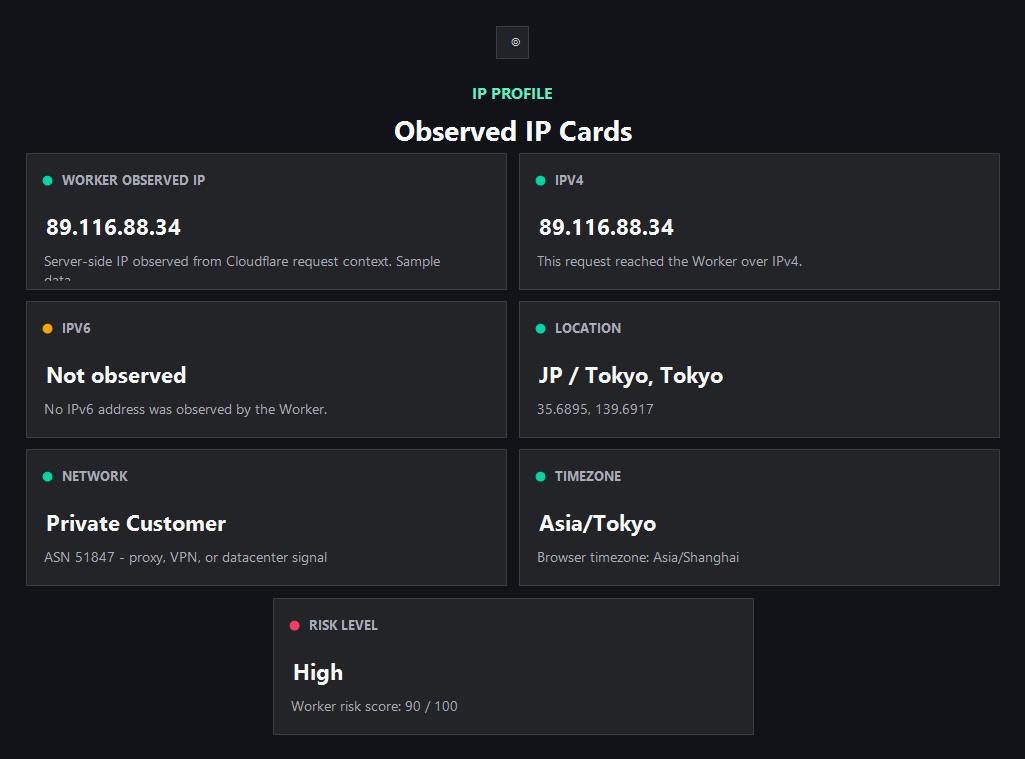
Start with the IP that the server actually sees
A public IP check answers a simple question first: which address did this request use when it reached a website? That is the address a login page, payment page, ad platform, forum, or API gateway can usually see before any browser-only privacy test runs. If you are using a VPN, proxy, mobile hotspot, corporate network, or public Wi-Fi, this visible address may be different from your home connection.
Modern home, IP risk, privacy and latency pages start a shared session automatically, including external DNS and STUN connections. Direct entry to tools, method or policy pages does not start a session; an existing session may continue. Old language homepages show an IP profile and use separate buttons for extra browser checks. Guides are explanations, not test results.
Read IP, ISP, ASN, and location together
The IP address alone is rarely enough. ISP and organization names tell you who appears to operate the network. ASN identifies the routed network block. Country, city, latitude, longitude, and timezone are approximate database fields, not GPS. IP version tells you whether the request used IPv4, IPv6, or only one of them.
A normal result is one where these fields match the network you expected. If you connected to a New York VPN exit, a United States country, matching timezone, and datacenter-style ASN may be ordinary. If you expected a residential mobile connection but the ASN looks like a hosting provider, that is a clue to inspect risk and reputation before using the session.
Use the result as the first checkpoint
Before logging into an important account, changing an ad account, testing an e-commerce store, or opening a region-sensitive workflow, record the public IP result first. Then run the related leak checks only if you need a deeper answer. This order makes troubleshooting calmer because you know which signal changed after each network or browser adjustment.
If the public IP changes after you connect a VPN, that is expected. If the IP changes but DNS, WebRTC, browser language, or timezone still point to a different place, the public IP check has done its job: it gave you a baseline for the next test instead of pretending one field proves privacy.
How ping123 reviews What is my IP? results
This page is maintained as an editorial companion to the live ping123 tool. It explains which signals are collected, what a normal result usually looks like, and which mismatches deserve a second check before a login, payment, account review, or VPN/proxy workflow.
The sample screenshot is a fixed reference image, not a current visitor result. Use it to understand field names and result layout, then run the live check in your own browser session because IP, DNS, WebRTC, timezone, and reputation signals can change after every network switch.
- Start with the visible public IP and ASN.
- Compare country, timezone, DNS, and WebRTC signals instead of trusting one score.
- Treat risk labels as troubleshooting evidence, not as a guarantee of anonymity or safety.
- Rerun the check after changing VPN, proxy, browser profile, DNS, or network.
What the result fields mean
Normal signals vs. risk signals
Usually normal
- The visible IP changes after connecting to the VPN or proxy you intended to use.
- Country, timezone, ASN, and browser language are consistent with the session purpose.
- IPv6 is either protected by the same tunnel or not observed at all.
- ISP and organization names match the network type you expected.
Needs attention
- The IP still belongs to your home or office ISP after you expected a VPN exit.
- Country or timezone conflicts with the account region you are about to use.
- The ASN looks like hosting or proxy infrastructure when you expected residential access.
- IPv4 looks protected but IPv6 or WebRTC may still need manual checks.
Next action
Check my IP now
Continue with the live ping123 check before trusting this browser session.
Fixes and next steps
- Reconnect the VPN and choose the exact country or city required for the session.
- Disable IPv6 in the VPN client or operating system if your provider does not tunnel it safely.
- Run the IP leak test and WebRTC leak test before logging in.
- Check DNS settings after switching networks or enabling secure DNS.
- Use a clean browser profile when account region and browser language must stay consistent.
- If the IP is shared or suspicious, check IP reputation before using it for payment, signup, or ads.
- Record the IP, ASN, country, DNS result, WebRTC result, browser timezone, and final decision when the check is part of an account or team workflow.
- Change only one setting at a time, then rerun the same ping123 page so the cause of a warning is easier to identify.
FAQ
What is my public IP address?
It is the IP address that websites can observe from your current browser request. It may belong to your ISP, VPN, proxy, mobile carrier, or company gateway.
Why is my IP location different from my real location?
IP geolocation is based on network databases and routing records. It can point to an ISP office, VPN exit, regional gateway, or outdated database entry.
Can a VPN change my public IP?
Yes. A VPN normally changes the server-visible IP to the VPN exit. You should still check DNS, WebRTC, IPv6, and browser signals.
Does knowing my IP prove I am anonymous?
No. A public IP check is only the first signal. Accounts, cookies, browser fingerprints, DNS, WebRTC, and behavior can still identify a session.
Should I check my IP before logging in?
Yes when account safety matters. Confirm the IP region, reputation, proxy type, and browser consistency before sensitive logins.
How does ping123 keep this page useful for review and real users?
We keep the page tied to a working tool, show example result screenshots, explain limits, and avoid saying that one score proves identity, anonymity, or account safety.
Does advertising affect this result?
Commercial relationships have not been confirmed. Promotional offers are not presented here.
Before you continue
Run the check before you continue
Use the live ping123 result as the source of truth for this browser session, then compare DNS, WebRTC, timezone, and IP reputation before deciding what to do next.