Leak test hub
IP leak test
An IP leak test checks whether your browser or network exposes signals beyond the VPN or proxy IP you meant to use. Use this page as the hub for public IP, WebRTC, DNS, IPv6, timezone, and browser consistency checks.
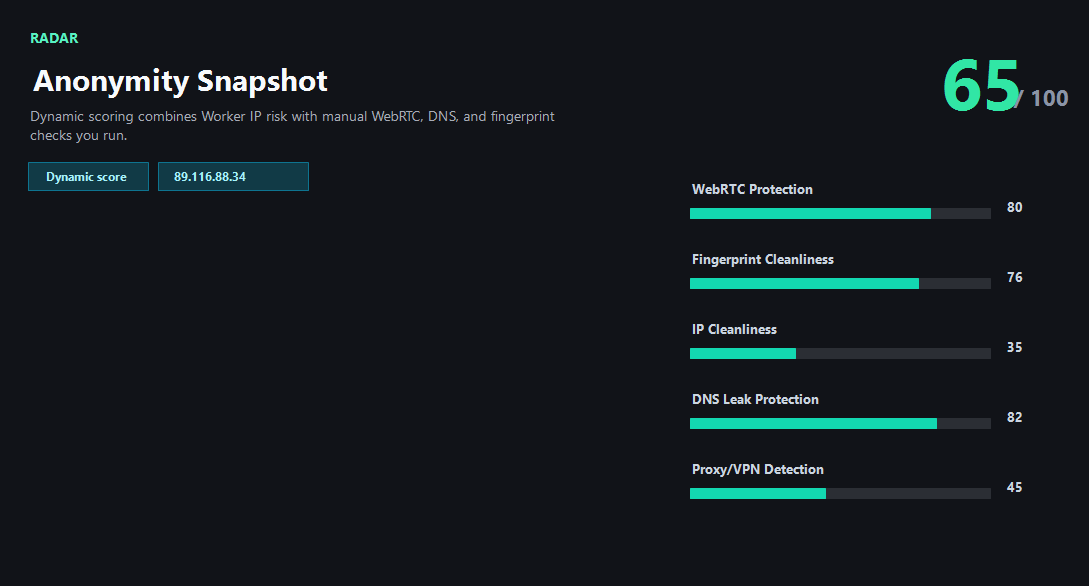
Example ping123 result screenshot
The screenshot below uses the designated sample IP 89.116.88.34, not a current visitor IP. Use it as a visual reference for the fields explained on this page.
What an IP leak test should compare
A useful IP leak test does not stop at the single IP printed at the top of the page. It compares the public IP observed by the server with browser-side signals that may come from WebRTC, DNS resolution, IPv6 routing, timezone, language, screen environment, and local browser settings. A leak is usually a mismatch between the identity you intended to present and the signals your browser actually emits.
For VPN and proxy users, the most important question is whether every signal points to the same story. If the public IP is a VPN exit but WebRTC exposes another public candidate, DNS uses the original ISP resolver, or browser timezone still matches your home region, the session deserves another look.
Why ping123 keeps leak checks manual
Some leak-test pages run every browser-level check as soon as the page opens. ping123 takes a more visible approach. The public IP profile loads first because that is already part of the normal page request. WebRTC, DNS, and fingerprint checks require separate clicks so you can decide which network activity to create.
This matters for privacy and troubleshooting. If you run only the public IP check, the result stays focused. If you choose to run WebRTC or DNS, the page shows which test produced which result. That makes it easier to repeat the test after changing one VPN, proxy, browser, or router setting at a time.
How to interpret conflicting signals
Conflicting signals are not always proof of a real identity leak. IP databases can be stale, VPN providers can use hosting networks, mobile carriers can route through shared gateways, and browsers may mask local WebRTC addresses with mDNS names. The useful question is whether the conflict affects the workflow you care about.
For casual browsing, a low-risk datacenter VPN exit may be acceptable. For account login, payment, advertising, social media, or e-commerce work, a mismatch between IP country, DNS country, browser timezone, and account history can raise avoidable risk. Treat the leak test as a checklist, not a magic anonymity score.
How ping123 reviews IP leak test results
This page is maintained as an editorial companion to the live ping123 tool. It explains which signals are collected, what a normal result usually looks like, and which mismatches deserve a second check before a login, payment, account review, or VPN/proxy workflow.
The sample screenshot is a fixed reference image, not a current visitor result. Use it to understand field names and result layout, then run the live check in your own browser session because IP, DNS, WebRTC, timezone, and reputation signals can change after every network switch.
- Start with the visible public IP and ASN.
- Compare country, timezone, DNS, and WebRTC signals instead of trusting one score.
- Treat risk labels as troubleshooting evidence, not as a guarantee of anonymity or safety.
- Rerun the check after changing VPN, proxy, browser profile, DNS, or network.
What the result fields mean
Normal signals vs. risk signals
Usually normal
- Public IP, DNS resolver, WebRTC candidates, and timezone point to the same expected region.
- WebRTC shows only relay, mDNS, or VPN-consistent public candidates.
- DNS resolver belongs to the VPN, private DNS provider, or expected secure resolver.
- IPv6 is tunneled safely or not observed when the VPN does not support IPv6.
Needs attention
- WebRTC exposes a public IP that differs from the VPN or proxy exit.
- DNS requests appear to use the original ISP after the VPN is connected.
- IPv6 shows a home or office route while IPv4 uses the VPN.
- Browser timezone or language conflicts with the IP region before a sensitive login.
Next action
Run the full leak workflow
Continue with the live ping123 check before trusting this browser session.
Fixes and next steps
- Switch VPN nodes and rerun the public IP check first.
- Disable WebRTC exposure in browser settings or use a browser profile that limits WebRTC candidates.
- Set DNS to the VPN provider or a trusted encrypted DNS resolver and retest.
- Disable IPv6 if your VPN does not support IPv6 tunneling.
- Avoid logging in when IP country and account region conflict.
- Use a clean browser profile and rerun the fingerprint check after changing settings.
- Record the IP, ASN, country, DNS result, WebRTC result, browser timezone, and final decision when the check is part of an account or team workflow.
- Change only one setting at a time, then rerun the same ping123 page so the cause of a warning is easier to identify.
FAQ
What is an IP leak?
An IP leak happens when a browser or network path exposes an address or signal different from the VPN or proxy identity you intended to use.
Is WebRTC the same as an IP leak?
WebRTC is one possible source. DNS, IPv6, timezone, browser permissions, and fingerprint signals can also create conflicts.
Do I need to run every test every time?
No. Start with the public IP. Run WebRTC, DNS, and fingerprint tests when privacy, login safety, or troubleshooting matters.
Can a proxy leak my real IP?
Yes. A proxy can cover HTTP traffic while WebRTC, DNS, IPv6, or browser environment still points elsewhere.
What is the safest order for testing?
Check public IP first, then WebRTC, DNS, IPv6, timezone, and fingerprint consistency before account login or payment.
How does ping123 keep this page useful for review and real users?
We keep the page tied to a working tool, show example result screenshots, explain limits, and avoid saying that one score proves identity, anonymity, or account safety.
Does advertising affect this result?
Commercial relationships have not been confirmed. Promotional offers are not presented here.
Before you continue
Run the check before you continue
Use the live ping123 result as the source of truth for this browser session, then compare DNS, WebRTC, timezone, and IP reputation before deciding what to do next.