VPN privacy workflow
VPN detection test
A VPN leak test confirms whether the session really presents the VPN identity you expect. Compare IP before and after connecting, then check DNS, WebRTC, IPv6, timezone, language, and fingerprint consistency.
Example ping123 result screenshot
The screenshot below uses the designated sample IP 89.116.88.34, not a current visitor IP. Use it as a visual reference for the fields explained on this page.
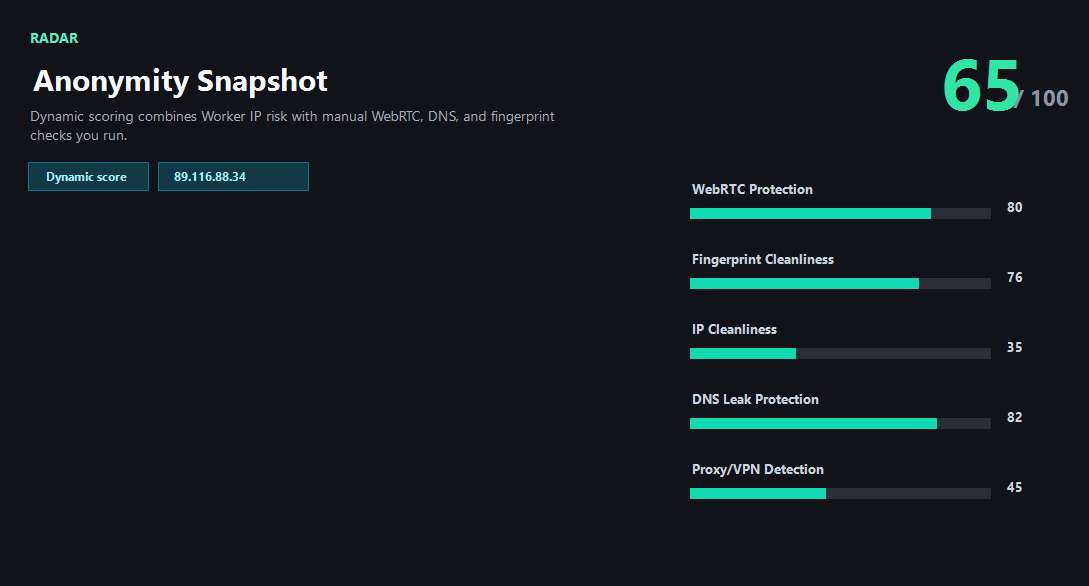
Compare before and after the VPN connects
The most reliable VPN test starts before the VPN is connected. Record the public IP, country, ASN, DNS behavior, and browser timezone. Then connect the VPN and repeat the same checks. The public IP should change to the VPN exit, and the supporting browser signals should stop pointing to the original network.
If only the public IP changes, the VPN may still be usable for simple browsing, but it is not enough for sensitive account workflows. DNS, WebRTC, IPv6, timezone, and browser fingerprint clues can still make the session look inconsistent to risk systems.
Why account login and payment need stricter checks
A streaming or news site may only care that your IP country changed. A bank, ad platform, marketplace, social account, or developer dashboard may compare more signals: historical account country, current IP reputation, proxy type, DNS country, browser timezone, device profile, and unusual ASN changes.
That is why this VPN leak test treats privacy as consistency instead of a single green badge. If your VPN exit is in Germany but the browser timezone is Asia/Shanghai, DNS is from an ISP in another country, and WebRTC exposes a different public IP, the safest action is to stop before logging in.
Interpreting VPN risk labels
Many VPNs use datacenter networks. That does not automatically mean the VPN is broken. It does mean some websites may classify the IP as hosting, shared infrastructure, or proxy-like. For casual privacy this may be acceptable; for account trust it can be a problem.
Use ping123 to decide whether the current VPN exit is good enough for the task. A clean VPN result means the exit IP, DNS resolver, WebRTC candidates, IPv6 behavior, timezone, language, and risk score tell one coherent story.
How ping123 reviews VPN detection test results
This page is maintained as an editorial companion to the live ping123 tool. It explains which signals are collected, what a normal result usually looks like, and which mismatches deserve a second check before a login, payment, account review, or VPN/proxy workflow.
The sample screenshot is a fixed reference image, not a current visitor result. Use it to understand field names and result layout, then run the live check in your own browser session because IP, DNS, WebRTC, timezone, and reputation signals can change after every network switch.
- Start with the visible public IP and ASN.
- Compare country, timezone, DNS, and WebRTC signals instead of trusting one score.
- Treat risk labels as troubleshooting evidence, not as a guarantee of anonymity or safety.
- Rerun the check after changing VPN, proxy, browser profile, DNS, or network.
What the result fields mean
Normal signals vs. risk signals
Usually normal
- Public IP changes to the VPN exit and stays stable during the session.
- DNS resolver matches the VPN or expected secure DNS provider.
- WebRTC shows no original public IP outside the tunnel.
- Browser timezone and language are reasonable for the account or region.
Needs attention
- VPN connects but public IP remains the original ISP address.
- DNS or WebRTC points to the original network after the VPN connects.
- IPv6 leaks while IPv4 uses the VPN.
- The VPN exit has high reputation risk before a sensitive login or payment.
Next action
Test your VPN before account login or payment
Continue with the live ping123 check before trusting this browser session.
Fixes and next steps
- Switch VPN nodes when the current exit has poor reputation or wrong country.
- Enable the VPN kill switch and DNS leak protection options.
- Disable IPv6 if the VPN does not tunnel IPv6 reliably.
- Close and reopen the browser after changing VPN routes.
- Use a browser profile with timezone and language aligned to the intended region.
- Run an IP risk check before logging into important accounts.
- Record the IP, ASN, country, DNS result, WebRTC result, browser timezone, and final decision when the check is part of an account or team workflow.
- Change only one setting at a time, then rerun the same ping123 page so the cause of a warning is easier to identify.
FAQ
How do I know if my VPN is leaking?
Look for mismatches: original ISP IP, DNS outside the VPN, WebRTC public candidates, IPv6 bypass, or browser region conflicts.
Is a datacenter VPN IP bad?
Not always. Many VPN exits are datacenter IPs. It becomes a concern when the site or account workflow is sensitive to proxy-like infrastructure.
Should I test before every payment?
Yes when account safety matters. Check IP, reputation, DNS, WebRTC, and browser consistency first.
Can split tunneling cause leaks?
Yes. If the browser is excluded from the VPN tunnel, public IP, DNS, or WebRTC can use the direct network.
What should I do after switching VPN nodes?
Run the same test sequence again: public IP, DNS, WebRTC, IPv6, timezone, fingerprint, then risk score.
How does ping123 keep this page useful for review and real users?
We keep the page tied to a working tool, show example result screenshots, explain limits, and avoid saying that one score proves identity, anonymity, or account safety.
Does advertising affect this result?
Commercial relationships have not been confirmed. Promotional offers are not presented here.
Before you continue
Run the check before you continue
Use the live ping123 result as the source of truth for this browser session, then compare DNS, WebRTC, timezone, and IP reputation before deciding what to do next.